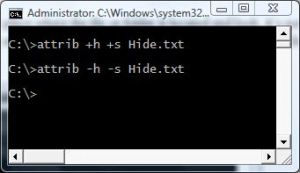
 In this post you will learn how to show or hide files and folders in Windows using the command line prompt.
We will use the attrib command to hide or show files or folders in Windows.
attrib: Using the attrib command in Windows, we can change file attributes (i.e., read-only, system and hidden flag).
attrib +h [file/folder name]: This will set hidden attributes to active. It will hide a file/folder.
attrib -h [file/folder name]: This will remove hidden attributes from a file to make files/folders visible to everyone.
How to Hide a File in Windows Using Command Prompt
1. Open your Command Prompt window using the Windows + R key combination, and then type cmd.
2. Navigate to the path where your file is located.
3. Type attrib +h file name to make it hidden.
4. To make it visible again, remove the hidden attribute using attrib -h filename.
How to Hide a Folder in Windows Using Command Prompt
1. Open your Command Prompt window by using the Windows + R key combination, and then type cmd.
2. Navigate to the path where your folder is located.
3. Type attrib +h folder name to make your folder hidden from everyone.
4. To make it visible again, remove the hidden attribute using attrib -h folder_name.If you forget the list of files/folders and you have hidden them under a drive, you can use the graphical interface method to show/hide hidden files as mentioned in the articles listed Link below:
Windows 7: How Do I View View Hidden System Files, Folders, and Drives?
Windows 8: Show or Hide Hidden Files

Technology Service Provider
Welcome to TSP Site..!

 Technology Service Provider