

Why Would I Want a Signature for My Emails?
A signature is a smart thing to have at the end of an email: it can tell the recipient about your name, title, company, website and whereabouts in one place. Once set up, it will do so automatically to boot as Outlook Mail on the Web (Outlook.com) appends the signature block when you start a new message or reply.
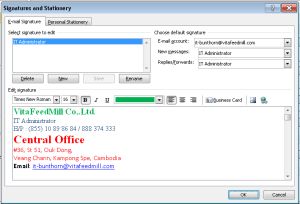
To add a signature to your Outlook Mail on the Web account, a signature that will be appended automatically to all emails you send:
- Click the settings gear icon (⚙️) in Outlook Mail on the Web.
- Select Options from the menu that has appeared.
- Go to the Mail | Layout | Email signature category.
- Enter the signature you would like to use under Email signature.
- You can use the toolbar to apply formatting and insert images, for example.
- Outlook Mail on the Web will convert the formatted text to plain one if you send a message using plain text only.
- It is best to keep your signature to some 5 lines of text.
- If desired, insert the signature delimiter (“– “) into your signature; Outlook Mail on the Web will not add it automatically.
- You can use the toolbar to apply formatting and insert images, for example.
- To have your signature inserted in new emails automatically:
- Make sure Automatically include my signature on new messages I compose is checked.
- To have your signature inserted in replies and forwards:
-
- Make sure Automatically include my signature on messages I forward or reply to is checked.
- The signature will be inserted above quoted text from the original email.
- Make sure Automatically include my signature on messages I forward or reply to is checked.
- Click Save.
* ប្រភព Face Book Page https://www.facebook.com/chhoem.bunthorn

 Technology Service Provider