

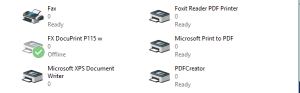
To work around this issue we can use the following steps to create a Printers desktop icon that will list the installed printers separately:
- Open the Registry Editor (Click the Start button > type “REGEDIT.EXE” without the quotes and press the enter key) When prompted with User Account Control select Yes.
- Expand to and selected the following registry key
HKEY_LOCAL_MACHINE\SOFTWARE\Microsoft\Windows\CurrentVersion\Explorer\Desktop\NameSpace - Right click on the NameSpace registry key and choose ‘New\Key’, enter the following GUID for the new registry key name (be sure to include the brackets)
{2227a280-3aea-1069-a2de-08002b30309d} - In the right pane, right-click the registry value (Default) and choose Modify, for the Value data enter “Printers” without the quotes,(As Picture)

- Close Registry Editor
- Right-click on the Desktop and select “Refresh”
Note: After selecting refresh of the desktop a new desktop icon called ‘Printers’ will appear. Double-clicking on the new Printers icon you will be able to see the installed printers separately. You can also Add, Remove, View, or Manage the print queues, change printer settings, and choose printer preferences from within this new Printers Desktop icon.
សម្រាប់ព័ត៍មានបន្ថែម ឬ មានអ្វីខ្វះខាត សូមមេត្តារិះគន់ដើម្បីស្ថាបនា!
រៀបរៀង និង កែសម្រូលដោយ ខ្ញុំបាទ ឈឹម ប៊ុនថន
Facebook : Bunthorn Chhoem
Tell : 088 837 4333 / 010 898 684
សូមអរគុណ !
 Technology Service Provider