

Have you ever used tools such as Rufus,SARDU,Xboot or some multiboot making tool? Most of the times these work for just small things but dont always work. like tools such as SARDU or even Rufus, whenever you wanted to add a new ISO or make changes they required you to reformat the entire USB to make changes. Well what if there is a free open solution that works the same way but without a program or having to reformat every time. EASY2boot allows you to turn any USB drive or even a portable HDD into a multiboot drive that allows you to boot from many ISO images such as
*UEFI &MBR Easy2Boot allow you to boot systems with both new and old BIOS and the new UEFI bios in newer laptops.
*Windows Install ISO’s
*ERD
*MSDart
*Haiku
*MS-DOS
*All Linux LiveCDS
*Hirens Boot CD
*UBCD
*FreeDos
*Hitman Pro
*Linux+Persistence
*AntiVirus
*XBMC
*Eset
*KonBoot
+XP Install to SATA disk
*MemTest86+
*OpenElec Live
*FreeBSD
*WinBulider Custom Made ISO’s
*WinPE ISO’s
*HP ISO Utilities
*USB Drive images YUMI,XBOOT,WinSetupFromUSB
Hackintosh .dmg, + 100’s More
To see more details about Easy2boot go to staves website: www.easy2boot.com
Tips and Other General Info:
Linux users – please go here. If possible however, use Windows to make the E2B USB drive as it will be easier and more compatible.
Tip: To make a multiple-partition USB E2B boot drive or use your existing USB drive without re-formatting or make an exFAT USB drive – see the ‘Make an E2B USB drive using RMPrepUSB’ page. Note that under Windows, Removable USB drives can only have one partition accessible to Windows at any one time.
WARNING: If using a large USB hard disk, use this method: http://www.easy2boot.com/make-an-easy2boot-usb-drive/make-and-e2b-usb-drive-using-rmprepusb/
instead and make sure that E2B is in the first partition and it is below 137GB
in size.
This is because many BIOSes have problems accessing USB sectors beyond 137GB!
Download Easy2boot
***** E2B DOWNLOADS ARE HERE! *****
Easy2Boot_v1.A7.exe (15MB) – Recommended for most users. This version can also be used to update any older E2B drive.
– OR –
Easy2Boot_v1.A7_DPMS.exe includes extra Windows XP drivers (27MB) – Includes Driver Pack Mass Storage (DPMS) drivers for installing 32-bit XP onto SATA\RAID\SCSI systems – an ‘E2B Update’ will also copy all the DPMS files. Use this version only if you need to install Windows XP onto SATA\RAID\SCSI systems (Note: due to the lack of new XP drivers, the very latest Mainboards may not be supported).
2 Ways to make USB BOOT with Easy2Boot
1 The Easy way with Easy2Boot V1.A7.exe
After Downloading was Completed right-click on it and choose ‘Run as Administrator…'( Easy2Boot V1.A7.exe)
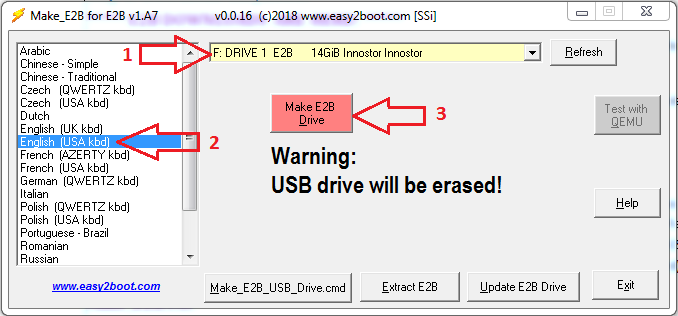
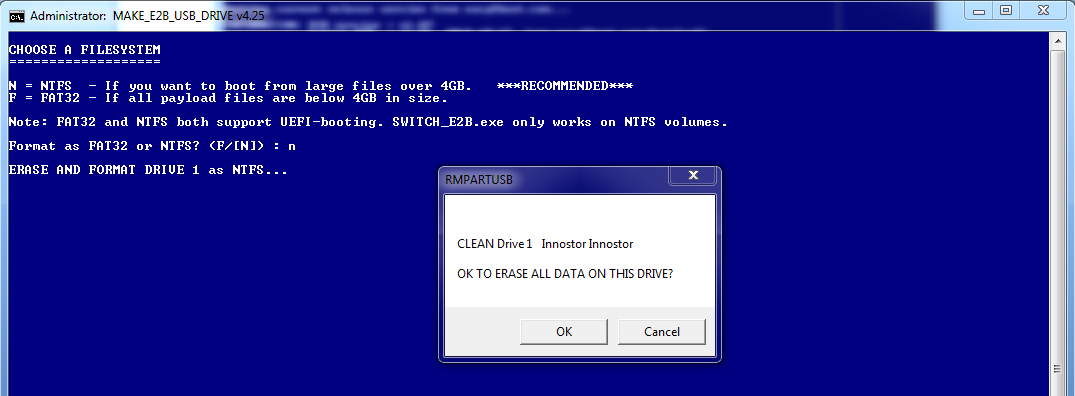
Message warning will alert to Clean & Erase for USB Drive.
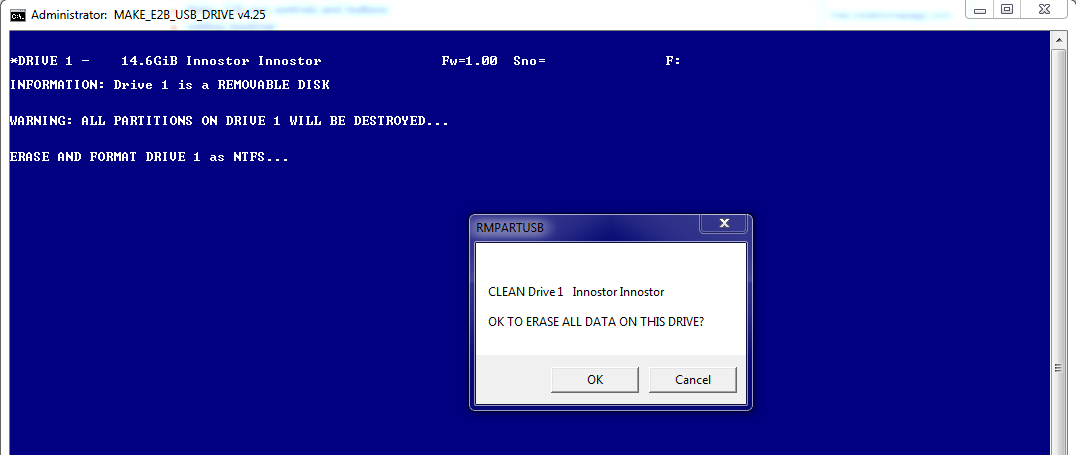
Your E2B Drive is ready to be used
The E2B drive is now ready for use.
Now go to Add Payload Files: http://www.easy2boot.com/add-payload-files
to add your own payload files.
2 Make_E2B Using Patch File
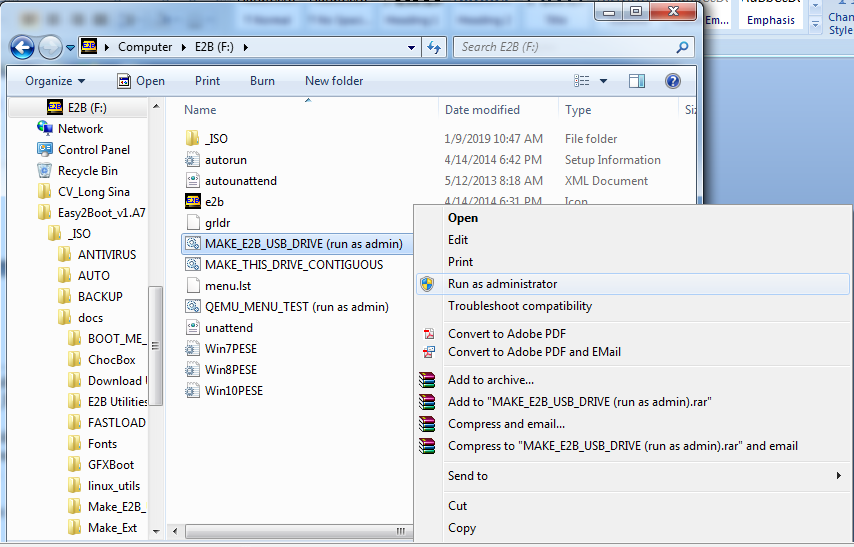
2.1 Run As Administrator “Make_E2B_USB_Drive (run as admin).cmd”
The E2B download is now a self-extracting .exe file. It automatically extracts the files to a new folder on your Windows drive before running Make_E2B.exe.
Follow this Guide
- In Windows Explorer, right-click and choose ‘Run
as Administrator…’ on either…
\Make_E2B_USB_Drive (run as admin).cmd
or
\_ISO\docs\Make_E2B_USB_Drive\Make_E2B_USB_Drive.cmd
in the extracted E2B download and follow the instructions (requires elevated privileges/Admin rights).
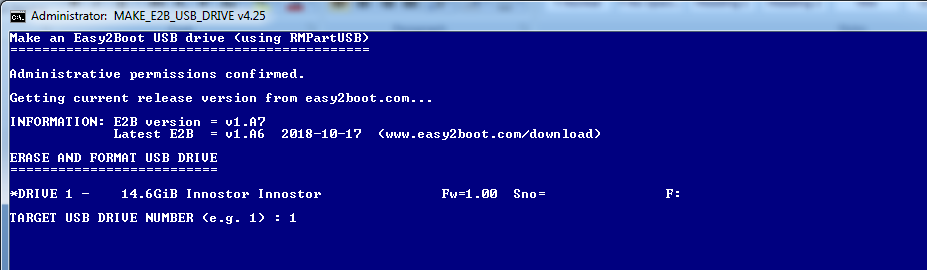
2.2 Select the USB that you want to be an E2B drive.
Select your USB Drive Number and Press Enter.
It will alert message to verify you to format just type “y” and Press Enter.

2.3 Select FAT32 or NTFS
To choose FAT32 (Y) when prompted, or press N for NTFS if you will need to add files larger than 4GB to the E2B drive and click OK to continue.
Note: Even if you intend to use .imgPTN partition images for UEFI booting, you can format the E2B drive as NTFS, i.e. you can still UEFI boot from .imgPTN files, even if the E2B USB drive partition is formatted as NTFS. If you have a small (1GB to 16GB) USB Flash drive and all your files are less than 4GB in size, I suggest you use FAT32 which is easier to defrag (especially under linux). Also, E2B can enumerate files on a FAT32 E2B drive twice as fast as a NTFS formatted drive, so the Main menu will load twice as fast if formatted as FAT32.
Even if you are booting a linux distro ISO file that does not support NTFS, it should still boot from an E2B NTFS drive!
2.4 Specifying Language,Keyboard & Menu Options
After finished Eras & Formating.
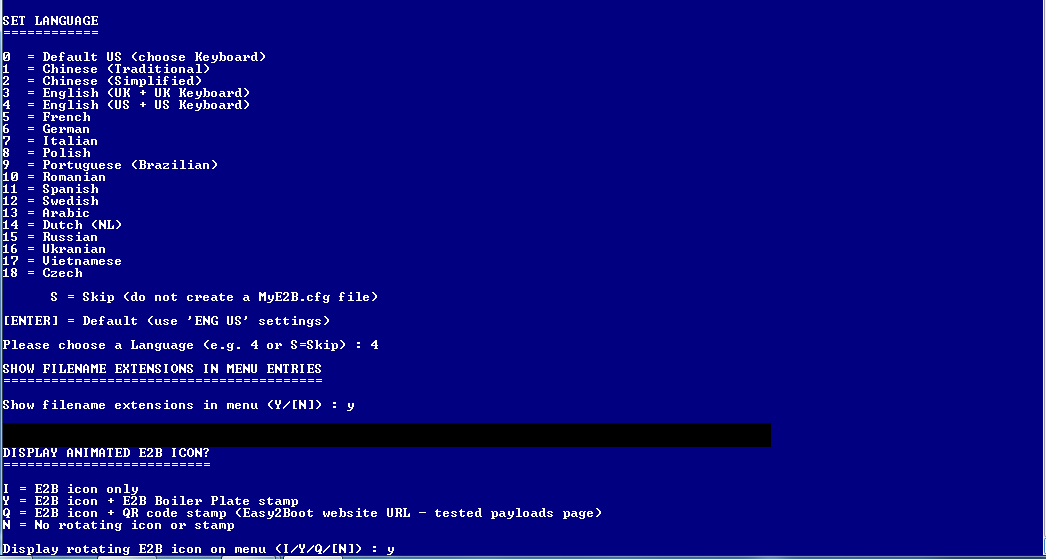
Make_E2B_USB_Drive.cmd will ask you to specify a language, keyboard and menu option and will create a \_ISO\MyE2B.cfg file for you – if you don’t want to use a MyE2B.cfg file, type S to skip that section.
2.5 Follow as Command Prompt
Just type “y” and Press Key Enter until finish.
Your E2B Drive is ready to be used
The E2B drive is now ready for use.
Now go to Add Payload Files: http://www.easy2boot.com/add-payload-files
to add your own payload files.
References
សម្រាប់ព័ត៍មានបន្ថែម ឬ មានអ្វីខ្វះខាត សូមមេត្តារិះគន់ដើម្បីស្ថាបនា!
រៀបរៀង និង កែសម្រូលដោយ ខ្ញុំបាទ ឈឹម ប៊ុនថន
Facebook : Bunthorn Chhoem
Tell : 088 837 4333 / 010 898 684
សូមអរគុណ !

